6. Computer Systems
computer systems
hardware
storage
monitors
USB
A visual route through computer hardware, storage, displays, USB, peripherals, and safe workstation setup.
Start with the complete computer, identify what each part does, then connect peripherals safely.

1. Safe opening and parts
Power safety, static control, motherboard, CPU, RAM, storage, cooling, and expansion parts.

2. USB and peripherals
USB connector shapes, USB-C capabilities, mouse, keyboard, audio, storage, and cable management.
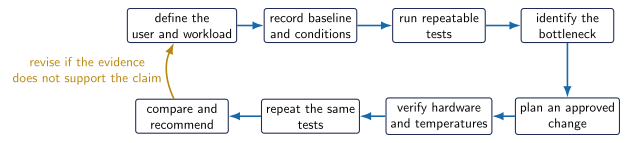
3. Linux benchmarking challenge
Run repeatable tests, compare evidence, and recommend an approved improvement for a real user.
Presentation
Download Monitors, Signals, Ports, and Cables
ImportantHardware safety boundary
Power off and unplug before opening a computer. Control static and handle circuit boards by their edges. Never open a power-supply enclosure.