Access & Alt Text
Learning goals
- I can explain how a design choice can include or exclude people.
- I can decide whether an image is informative, functional, complex, or decorative.
- I can write alt text that communicates what the image contributes.
This lesson applies the BBC guidance for visually and hearing impaired audiences and the current W3C image decision tree.
Why this is useful
People are not the problem. A design becomes disabling when it depends on one way of seeing, reading, hearing, or operating it. Accessible design gives the same idea more than one reliable path.
For images, that second path is often text. The description should carry the image’s purpose, not list every visible object.
Decide what kind of image it is
Informative
The image adds a useful fact or relationship. Write a short description of what the learner needs to notice.
Complex
The image is a chart, diagram, or detailed process. Use brief alt text and explain the important data or relationships in nearby text.
Functional
The image is a button or link. Describe the action or destination, not the way the icon looks.
Decorative
The image adds no information. Use empty alt text so a screen reader can skip it.
Use the guide’s Google Docs example
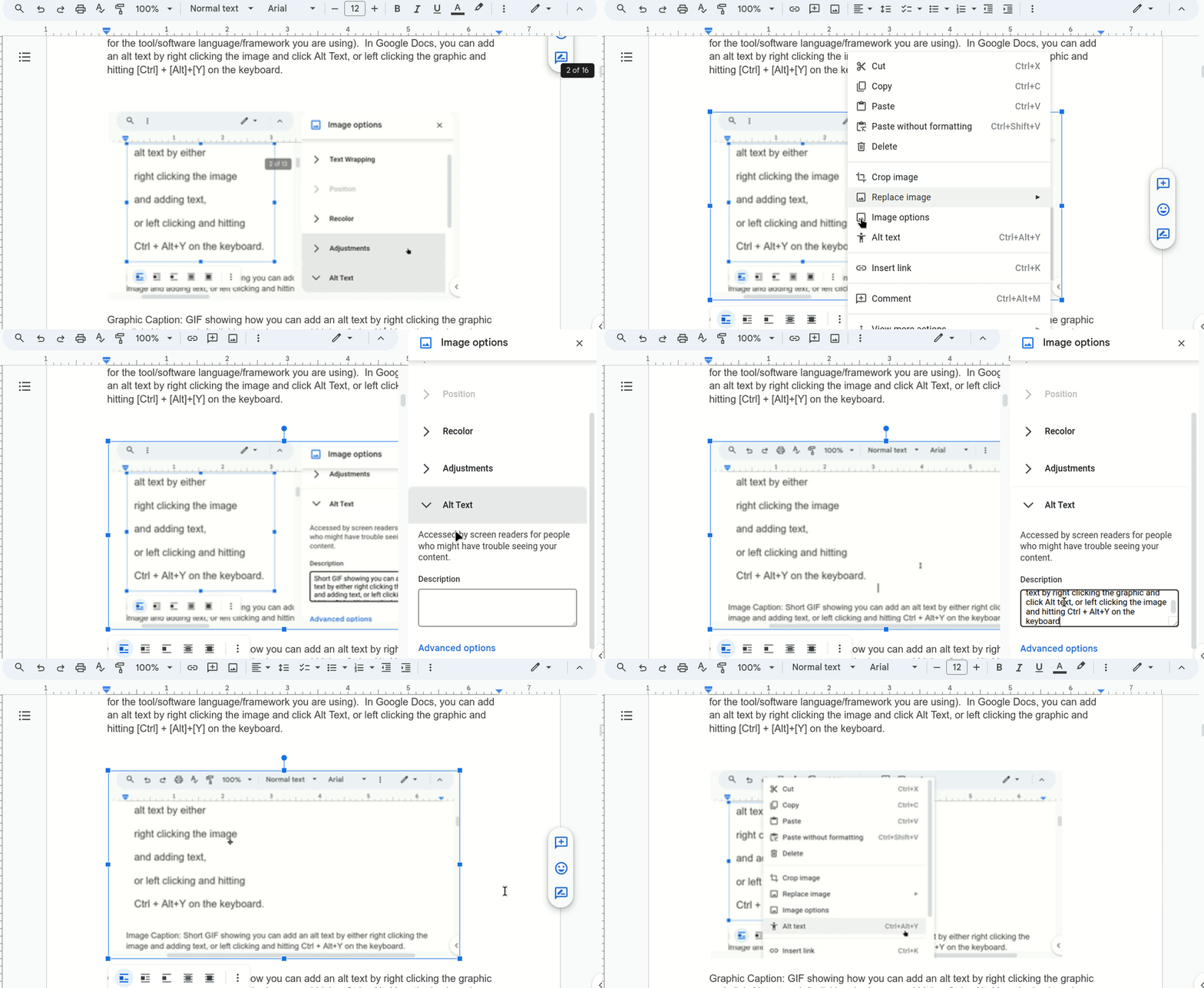
The original guide demonstrates two ways to open the Alt Text control in Google Docs: right-click the image and choose Alt text, or select it and press Ctrl + Alt + Y.
Alt text is not the visible caption. A caption helps everyone understand the figure. Alt text gives an equivalent purpose or meaning when the image is unavailable.
Write for purpose, not pixels
Too literal
“A screenshot with a white panel, a blue square, black text, menus, and a toolbar.”
Useful
“Google Docs Image options panel open to Alt Text for a selected image.”
The useful version identifies the tool, the control, and the reason the screenshot is present. It avoids details that do not help someone complete the task.
Try it
Choose one instructional image from a lesson or handout.
- Write one sentence stating its purpose.
- Name the relationship, result, or action the learner must notice.
- Remove details that do not change the meaning.
- If the image is complex, add a nearby explanation that carries the full information.
Check your work
- The description makes sense without “image of” or “picture of.”
- Text shown only inside the image is available in the alt text or nearby text.
- A decorative image has empty alt text.
- A linked image describes where the link goes or what it does.
- A complex figure has more than a one-line description somewhere on the page.
Summary
First decide what job the image performs. Then write the shortest text that performs the same job. Continue to Fonts & Text Effects.
Sources: W3C Images Tutorial and Harvard Digital Accessibility: Write helpful image descriptions.